


WiFi Signal Map
4.34.00 Reviews
App Specs
- Version
- 1.0.3
- Updated On
- License
- Free
- Downloads
- 10,000+
- Developer
- Susan Litwiller Executive NeuroCoaching LLC
- Categories
- Tools
- Platform
- Android
Screenshots
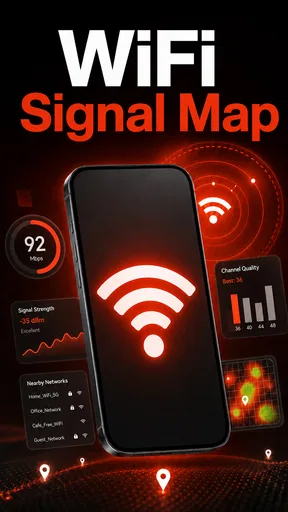
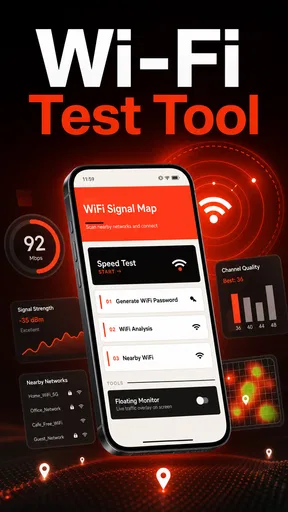
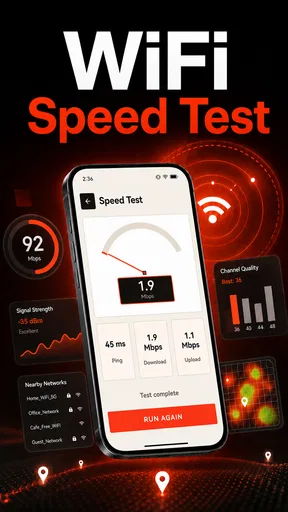
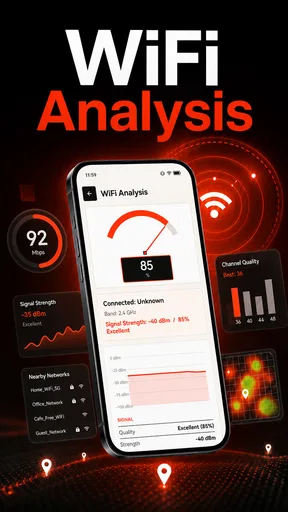
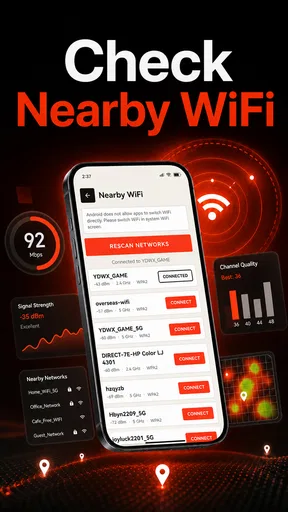
 Analysis by AppCompare
I approached WiFi Signal Map as a practical tool rather than a flashy network utility. Its purpose is straightforward: help me scan nearby Wi-Fi networks and inspect signal information as it changes. That narrow focus is useful when I am trying to understand why a connection feels unreliable, choose a better place for a router, or compare wireless coverage from one room to another.
The app is free, aimed at Everyone, and belongs to the Tools category. It comes from Susan Litwiller Executive NeuroCoaching LLC, a developer name that may feel unexpected for a networking utility, so I judged the product mainly by how clearly it communicates what is happening on screen and how much effort it takes to interpret the results. My overall impression is that it can be helpful for quick, visual troubleshooting, especially when I want more context than the ordinary Wi-Fi settings page provides.
It is currently at version 1.0.3 and has reached over ten thousand installs, with an average rating of 4.4 from roughly forty-five ratings. Those figures suggest a small but generally positive audience rather than a long-established network-analysis platform. I would therefore treat it as an approachable helper for everyday checks, not automatically as a replacement for specialist diagnostic software.
How clearly the app presents a wireless scan
The first thing I value in a signal tool is not the number of technical details it can expose, but whether I can understand the screen quickly. WiFi Signal Map is most useful when its live information can be read at a glance while I move around a home, office, classroom, or small shop. A person should not need to memorize networking terminology just to decide whether one corner of a room has a weaker connection than another.
For that reason, the app’s strongest possible role is as a visual aid during a physical check. I can imagine opening it near a desk, walking toward a hallway, and watching the signal information change instead of relying on a vague impression from a web page loading slowly. That turns an annoying problem into a simple comparison exercise: check one location, pause, check another, and look for a consistent difference rather than trusting a single moment.
The useful habit is to compare locations under similar conditions. I would keep the phone orientation reasonably consistent, avoid drawing conclusions from one brief reading, and repeat a measurement if other devices are actively using the network. A live signal display is valuable, but it is still a snapshot of a changing radio environment. Walls, doors, nearby electronics, network traffic, and the phone’s own position can all affect what I see.
Readability also matters for people who do not spend their time around routers and access points. A compact technical screen can become confusing if it presents several networks without making the important distinction obvious. The practical question is usually not “Which entry has the most information?” but “Which network is relevant to me, and where does it remain usable?” I would prefer to use the app as a focused comparison tool rather than stare at every value continuously.
Worth Reading Before You Choose

EA SPORTS FC Mobile 26 Is a Bigger Football Game, but It Takes Time

Flipboard Shows What News Apps Must Do Beyond the Feed

Switching to Android Auto Means Rethinking Your Driving Routine

Google Calendar Makes a Crowded Week Easier to Manage

Ludo King Makes the Most of the Minutes Between Plans

Baby Panda World Brings Quick Play to Modern Phones, but Its Game Library Feels Busy
Navigation should be easiest when the workflow stays linear: open the app, scan, identify the network or networks of interest, then move through the space. That kind of sequence is friendlier to users who find dense menus tiring or who need extra time to process changing information. It also reduces the chance of accidentally treating a background network as the one I am trying to troubleshoot.
Making the results easier to interpret
I would use the app alongside a simple written note if I were checking several rooms. For example, I might record “desk,” “sofa,” and “bedroom doorway,” then compare the readings after returning to each position. This is more reliable than trying to remember a moving display. It is also a useful workaround for anyone who finds rapidly changing visual information difficult to follow.
Another practical approach is to change only one thing at a time. If I move the phone, close a door, and relocate the router together, I cannot tell which change mattered. WiFi Signal Map is better suited to controlled, small experiments: stand still, observe; move a few steps, observe; then test again later. That method extracts more value from a simple scanner than randomly walking around while watching numbers fluctuate.
The app’s real-time nature can be helpful and distracting at the same time. It gives immediate feedback, but constant updates may make it harder to decide whether a change is meaningful. I would look for a pattern across several moments rather than react to every small movement in the display. This is particularly important for users who experience visual overload or who prefer information presented at a slower pace.
I also would not assume that a strong signal automatically means fast internet. Signal strength describes the wireless link between the device and network equipment; it does not by itself explain an overloaded broadband connection, a slow service plan, or a problem at the provider’s end. The app can help me locate a weak wireless area, but it cannot turn every internet problem into a signal problem.
Motor, visual, and sensory considerations in everyday use
From an access perspective, a phone-based scanner has one immediate advantage: I can carry it to the place where the problem occurs. I do not need to sit beside the router or work at a desktop computer. That makes the tool potentially useful for someone who cannot easily rearrange furniture, reach a network cabinet, or repeatedly return to a fixed workstation.
At the same time, walking while watching a changing screen is not ideal for everyone. A user with limited balance, reduced vision, tremors, or difficulty holding a phone steadily may find the live inspection process physically awkward. I would stop in each location before reading the result rather than trying to navigate and interpret at once. That small change makes the task safer and more manageable.
For users with low vision, the experience depends heavily on how the app renders text and visual indicators on the device. I would increase the phone’s system text size or display magnification where available, then check whether the information remains understandable without excessive horizontal movement. If important values are conveyed mainly by color, that could create an avoidable barrier for people with color-vision differences. I would rely on labels and trends whenever possible, not color alone.
People who are sensitive to motion or rapidly changing content may prefer to take brief readings instead of watching the display continuously. I would open the scan, hold the phone still, and look only long enough to capture the relevant state. If the screen feels visually busy, a written comparison of a few locations is more comfortable than following every live update.
Motor access also includes the precision required to select a network or move through controls. A tool that asks for repeated small taps can be frustrating for someone with limited dexterity. My workaround would be to slow down, use the phone’s built-in touch accessibility options if needed, and avoid unnecessary repeated scans. The app is most approachable when I treat it as a short inspection rather than a control panel that demands constant interaction.
For hearing-impaired users, a visual signal tool has an obvious practical benefit because its central feedback does not need to be heard. However, I would still want all important status changes and instructions to appear in text rather than depending on sound or vibration. Since network troubleshooting often happens in noisy rooms, visual clarity is useful for almost everyone, not only people with hearing differences.
Situational access beyond disability
Accessibility is also about circumstances. Someone may use this app in a dim room, outdoors in bright light, while wearing gloves, or with only one hand free. A phone screen that is easy to read indoors may be harder to inspect under glare. I would pause in a safe position, adjust brightness if necessary, and avoid making a decision from a display I can barely see.
A one-handed workflow could be convenient when I am carrying a laptop or moving a small router. It could also be inconvenient if the most important information sits in a part of the screen that is difficult to reach. I would begin the scan before moving equipment, then use the phone only for short checks. That reduces both hand strain and the risk of dropping the device while concentrating on the network.
The app may be especially approachable for a household member who is not the person responsible for the network. Instead of asking someone to explain advanced router settings, I can demonstrate the basic question physically: does the connection look different here or there? That makes troubleshooting more collaborative. A family member can help hold the phone, read the screen aloud, or mark locations while another person handles the router.
It can also support a quiet troubleshooting session. If I am working in a shared office, library, or classroom, a visual scan is less disruptive than repeatedly asking others whether the connection feels slow. I can identify a likely weak area first, then decide whether the issue deserves a larger network change.
For people who are anxious around technical settings, the app’s focused purpose may be less intimidating than a full network analyzer. I would introduce it with one question: “Where is the signal weaker?” That keeps the task concrete. I would not begin by explaining every technical term, because too much information can make a simple check feel like a specialist procedure.
Where it fits beside ordinary phone settings
The usual alternative is the operating system’s Wi-Fi screen. That is often enough to connect to a network, forget a saved connection, or confirm whether the phone is online. It is usually the better choice when I simply need to join a network. WiFi Signal Map becomes more interesting when I need to compare wireless conditions across physical locations rather than manage a connection.
Another alternative is a full-featured network analyzer. Such tools can be preferable for advanced users who need extensive technical diagnostics, detailed channel planning, or a broader view of network behavior. The trade-off is complexity. A specialist app may answer more questions, but it can also bury the one answer an ordinary household needs. I see this app as a middle ground: more purposeful than basic settings, less intimidating than a professional toolkit.
Router administration pages offer another comparison. They can reveal information about the access point and connected devices, but they are often tied to a particular router brand and may require login details. A phone-based signal check is more convenient for walking around the property. It does not replace router controls, but it can tell me where to begin before I change anything in the router interface.
Remaining barriers and sensible limits
The biggest limitation is that a signal reading should not be treated as a complete diagnosis. If the signal looks healthy but video calls still fail, the cause may be congestion, broadband performance, device settings, or a service outage. I would use the app to test the wireless layer first, then move to other checks if the results do not match the experience.
Nearby networks can also complicate interpretation. A scan may show several wireless sources, but visibility does not necessarily tell me which one is causing interference or which network belongs to my home. I would identify my own network carefully and avoid making changes based only on the presence of many entries. In an apartment building or busy office, repeated readings at different times may be more informative than one scan.
There is also a human barrier: technical labels can discourage people who are already frustrated. Even when the information is accurate, unfamiliar terms can make a user feel that the app is judging their knowledge. I would use it with plain-language notes and a narrow goal, such as finding the best place for a work laptop. If the screen requires too much interpretation for that task, the ordinary settings page or help from a more experienced person may be the better option.
Privacy-conscious users should approach any network-scanning utility thoughtfully. I would review the app’s behavior and requested access on my own device before using it regularly, and I would avoid assuming that scanning information is harmless simply because the app is free. I would also be cautious when testing in places where identifying nearby networks could expose information about other people’s setups. The responsible use case is diagnosing an environment I am authorized to inspect.
The release is still relatively early, and the current version, 1.0.3, reinforces my view that expectations should remain practical. I would not choose it as the only tool for a business-grade wireless survey or a complicated multi-access-point installation. For those jobs, a purpose-built professional workflow is more appropriate. This app makes more sense for a home, a small workspace, or a quick first investigation.
It is also not the right choice for someone who wants automatic network repair. Scanning and viewing information can guide a decision, but the user still has to interpret the result and decide whether to move a router, change a location, or investigate another cause. That hands-on element is a strength for curious users and a weakness for anyone expecting a one-tap fix.
A realistic home scenario
Imagine that my laptop works well near the router but drops video calls at the dining table. I would open the app near the router, wait for a stable reading, and note the result. Then I would walk to the table, stop moving, and compare what I see. I would repeat the check at the doorway and perhaps with the room door open and closed. This gives me a small evidence trail instead of a guess based on one failed call.
If the table consistently shows a weaker signal, I might reposition the router or move the laptop before buying new equipment. If the readings look similar in both places, I would stop blaming coverage and investigate broadband speed, computer behavior, or the video-call service. That is one of the app’s most useful lessons: it can prevent me from spending money on a range extender when the wireless signal is not actually the problem.
For an accessibility-focused household, I would adapt the same process. One person could carry the phone while another records the locations. Someone with low vision could have the readings read aloud. Someone with limited mobility could test only reachable areas and ask another person to collect the rest. The tool does not solve every access issue, but its portable purpose allows the workflow to be shared and adjusted.
My inclusive verdict
I recommend WiFi Signal Map to people who want a simple way to investigate wireless coverage in the places where they actually use their devices. Its value is clearest when I need to compare rooms, identify a likely weak spot, or decide whether a connection complaint is really related to signal strength. The free price removes an obvious barrier, and the Everyone age rating makes it suitable for general household use.
I would be more cautious about recommending it to advanced network professionals, users seeking automatic repairs, or anyone who needs a complete wireless survey. A specialist analyzer or router management tool may provide better depth in those situations. I would also skip it if changing screens, moving around, or interpreting technical information is likely to create more frustration than insight.
For inclusive use, the best approach is deliberate rather than rushed: enlarge text when needed, pause before reading, compare locations consistently, and use a helper or written notes if live information is difficult to follow. Those habits matter as much as the app itself. Its practical strength is turning an invisible wireless problem into a location-based question that more people can investigate together.
In my experience, WiFi Signal Map is a focused, approachable first step. It will not explain every reason an internet connection fails, but it can make the physical side of troubleshooting clearer. For a free Tools app with a modest but positive user base, that is a worthwhile role—provided I use its readings as evidence, not as the final answer to every network problem.
Pros
- Maps nearby Wi-Fi networks with signal strength and location details.
- Helps identify stronger spots for improving home or office connectivity.
- Useful for comparing network coverage while moving around an area.
- Can support planning for Wi-Fi access point placement.
- Simple interface makes basic signal checking quick to understand.
Cons
- Map accuracy depends on available data and may vary by location.
- Some features may require location access and other device permissions.
- Crowded areas can produce many networks that are difficult to distinguish.
- Results may become outdated when routers are moved or renamed.
- Advanced analysis tools may be limited compared with professional Wi-Fi scanners.
FAQs for WiFi Signal Map
What is WiFi Signal Map and what does it do?
WiFi Signal Map is an app designed to help you understand the strength and coverage of wireless networks around you. It can display nearby Wi‑Fi signals and, depending on the device and available features, provide information such as signal strength, network names, channels, and approximate coverage. This makes it useful for finding weak areas, improving router placement, or checking connectivity in a home or office.
Does WiFi Signal Map require internet access to work?
The app can usually scan nearby Wi‑Fi networks without an active internet connection, because it reads wireless signals detected by your device. However, some features may need internet access, especially online maps, location-based services, advertisements, cloud features, or database information. Results can also vary according to Android or iOS permissions, the phone’s Wi‑Fi hardware, and whether location services are enabled.
Is WiFi Signal Map accurate enough to locate Wi‑Fi dead zones?
WiFi Signal Map can be helpful for identifying areas with stronger or weaker wireless reception, but its results should be treated as practical estimates rather than professional measurements. Walls, furniture, interference from other networks, device orientation, and temporary network activity can affect readings. For the most reliable assessment, walk through the area several times and compare signal results in the same locations.
What permissions does WiFi Signal Map request, and are they safe?
WiFi scanning apps commonly request permission to access nearby devices, Wi‑Fi information, and location services. On some mobile systems, location permission is required because wireless network data can potentially reveal a device’s position. Before installing, review the app’s permissions and privacy policy in the official app store. Avoid granting access that appears unrelated to its signal-mapping purpose.
Is WiFi Signal Map free, and are there any limitations?
WiFi Signal Map may be available as a free download, although the exact pricing, advertising, and optional features can depend on the version and platform. Free editions may include advertisements, limited map views, or fewer analysis tools. Before downloading, check the current store listing for in-app purchases, subscription terms, supported devices, and whether features such as detailed scanning are restricted.


